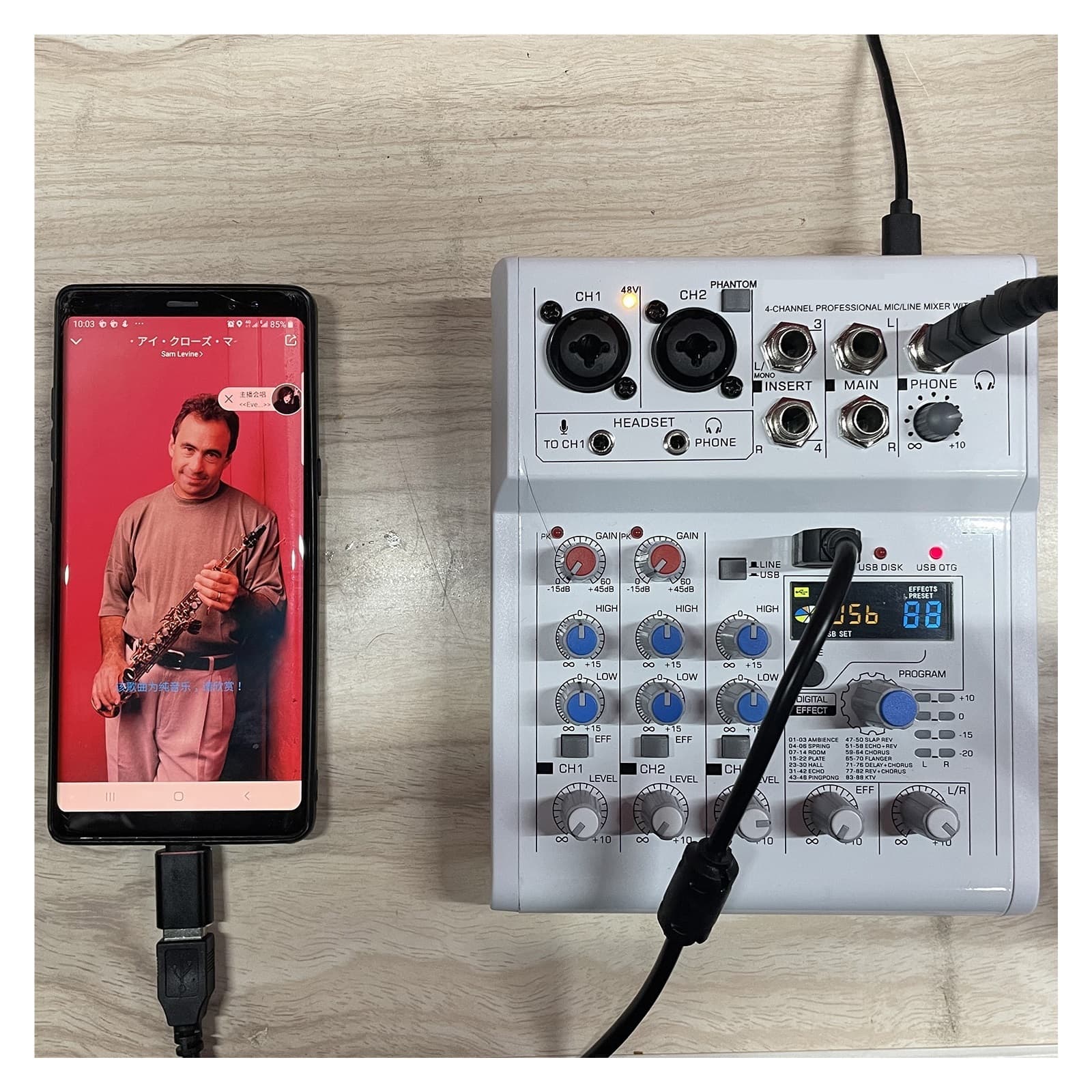
4 Channel DC 5V Mobile Computer USB Play and Record 88 DSP Effects Echo Reverb Personal Mixer
1. 4 Channel mixing console 2. 88 Effects 3. function 4. USB record, play 5. Connect to Mobile, Computer Mobile Live Broadcast 1. In the package, there is 1 piece USB cable , and a Type-C adapter. 2. You can connect your mobile to Mixer via the USB interface of the mixer 3. Mixer can receive the signal from Mobile, and Mobile can receive the signal from Mixer. 1. You can connect your computer to Mixer via the USB interface of the mixer 2. Mixer can receive the signal from computer, and computer can receive the signal from Mixer. PC play: you can play music from PC to mixer.--You need a pc music play software PC record: You can record the sound from mixer--you need a pc record software. Tips: (1)Front panel USB connect to PC,please turn the switch to USB power (2)Back panel USB connect to PC,please turn the switch to the PC Press "MODE" button, the white arrow will move to the left/middel/right position. Left: Function switch Middle: Player operation Right: Effect switch How to choose function Step 1. Press "MODE" to move the white arrow at the left position. Step 2. 1) Rotate "Program" knob to choose the function 2) Press "Program" knob to confirm. Note: . USB Play . . USB Record . Player play mode: Loop Cycle . Player play mode: Random . Player play mode: Single Cycle 88 Effects Effect setting Step1. Press "MODE" to move the white arrow at the right position. Step2. 1). Rotate "Program" knob to choose the effect. 2). Press "Program" knob to confirm. Effect input: Step 1. Rotate "EFF" knob to adjust the Effect level. Step 2. Press "EFF" button to input the effects to channels. Receive the signal from other transmitters. Choose Mode: Step 1. Press "MODE" to move the white arrow at the left position. Step 2. 1) Rotate "Program" knob to choose the function 2) Press "Program" knob to confirm. Connect Mobile to Mixer: Step 1. Turn on your mobile function, and search for the mixer. Step 2. Pair the Mobile and Mixer Step 3. Turn on your mobile music program to play music, mixer will receive the signal. How to play Pre or Next song, or Pause? Step 1: Press "MODE" to move the white arrow at the middle position. Step 2: 1) Pre/Next: Rotate "Program" to play Pre/Next song. 2) Pause: Press "Program" to pause volume adjust: Step 1: Press Line/USB button to "USB" status Step 2: Rotate Channel 3/4 volume Knob to adjust Channel output volume. Step 3: Rotate Main output knob to adjust the Main output volume. USB play: Step 1. 1. Insert USB stick, USB disk light will be on. 2. Mixer will play music automaticlly. Step 2: Press Line/USB button to "USB" status Step 3: Rotate Channel 3/4 volume Knob to adjust Channel output volume. Step 4: Rotate Main output knob to adjust the Main output volume. Note: 1. USB Stick: fat32 2. Music mode: MP3, WAV, WMA, FLAC. How to play Pre or Next song, or Pause? Step 1: Press "MODE" to move the white arrow at the middle position. Step 2: 1) Pre/Next: Rotate "Program" to play Pre/Next song. 2) Pause: Press "Program" to pause Enter Recording Mode: Step 1. Press "MODE" to move the white arrow at the left position. Step 2. 1) Rotate "Program" knob to choose the function 2) Press "Program" knob to confirm. Step 3. Press "MODE" to move the white arrow at the middel position. Record: Step 1. Press "Program" knob to begin to record. Step 2. Short Press: Record pause, press again, continue to record. Long Press: End the record. Play Record: Method 1: Long press "MODE" Method 2: Long press "Program" 1. Press "Phantom" button, 48V led light will be on. 2. Channel 1 and Channle 2 will have +48V phantom--only for XLR jack. Dynamic Microphone For dynamic microphone, please do not use +48V phantom power. (please use XLR ,not a 6.3 ,because use the 6.3 ,the sound will be too small.) Condenser Microphone 1.Please sure if your condenser microphone supports +48V phantom power. (Note: Some condenser microphone does not support +48V phantom power). 2. Power on +48V phantom power to supply the power to conderser microphone. L/MONO Function For connecting to Line-level devices such as an electric keyboard or an device. Use the [L/MONO] jack on channel 2 for instruments. Etc. with mono output. Signal only input to [L/MONO] jack: Output is stereo. Signal only input to [R] jack: Output is only right. Signal input to [L/MONO] and [R] jacks: Output is stereo. Phone volume adjust: 1. Channel volume 2. Main out volume 3. Phone volume [Headset] microphone and phone (3.5mm) It is for headphone with microphone. Note: when you connect 3.5mm microphone to mixer, the signal will be input in Channel 1. XLR/6.3 jack will be cut off. PHONE (6.3) You can connect your phone to mixer via 1/4" jack. Packing List
Shipping & Returns
Shipping & Returns